System wide Useful Links provide organisations with the ability to customise their landing page. Useful URL links that may be used on a regular basis can be created and made available to all users or groups of users. The order in which the URL links appear can be determined by a sequence number associated with each link.
NOTE: Links can be public giving all users access to the URL link on their homescreen, or individual users can continue to personalise their homesceen further with URL Links that are specific to their needs.
Create a Useful Link
-
Select menu
 Home > System > Code Setup.
- Click the Home menu to expand it:

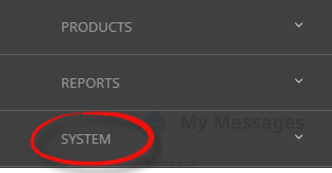
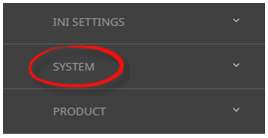
- Click the System menu option to expand it:

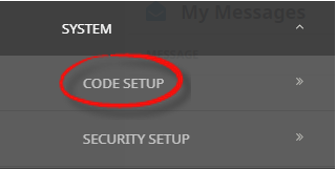
- Click Code Setup to go to the Code Setup menu:

- Click the Home menu to expand it:
-
Select menuCode Setup > System > Useful Link.
- Click the Code Setup menu to expand it:
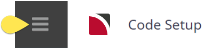
- Click the System menu option to expand it:

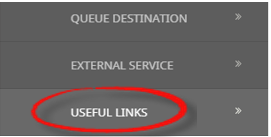
- Click Useful Link to open the Useful Link screen:

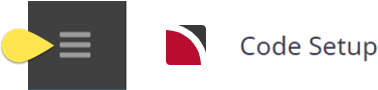
- Click the Code Setup menu to expand it:
-
ClickInsert.

-
On theUseful Links screen, enter a Name and URL for the Useful Link.

- Enter a Sequence Number.
- Select a Type from the dropdown selection.
- Check the completed screen.
-
ClickSave to keep the changes.

-
ClickExit to discard any changes.


NOTE: After clicking Save, the screen clears, ready for another Useful Link – continue adding useful links or click Exit to close the screen.
About Useful Links Fields

Name
The name field is used for a short URL name, this is the name that will appear on the home screen.

URL
The URL field is used to insert the Useful Link URL.
Sequence
The order in which the URL's are to appear on the home screen can be determined by the sequence number attached here.
Type
There are four options available and each selection controls the users who will be able to see the URL link on their homescreen.
- All Users
- Group
- Private User
- User List
All Users - Selecting this will allow all users to have access to the URL.
Group - This selection allows a group of users to be selected.
NOTE: User Groups will need to have been setup up previously in System > Security > User Groups.
- To add a Tourplan group to the Useful Link, hightlight the group name and click the
 button.
 - To remove a group from the Useful Link, highlight the groups name to be removed, and click the
 button.
Private User - Using this selection will enable another field for a specific user to be selected from the dropdown. This URL will only be available for the username selected.
User List - Selecting user list will provide a list of Tourplan users in a column to the left of the screen.
- To add a Tourplan user to the Useful Link, hightlight the user name and click the
 button.
 - To remove a user from the Useful Link, highlight the users name to be removed, and click the button.